iHub Solutions · WasteVantage Remote Support

Download & Set Up RustDesk on Android

Official support installer for WasteVantage & JR Skips drivers and staff. RustDesk lets an iHub Solutions support engineer view your Android screen while on a call with you so we can fix issues quickly.

RustDesk Android Installer (Universal Signed APK)

File: rustdesk-1.5.3-universal-signed.apk Version: 1.5.3 Size: 76 MB Android Phones & Tablets
SHA-256: 2223ab4a1be46f841e50bbd15d6b81b1618658530c6d382f52acfa61febf566b

⚠ Why does RustDesk show a "You May Be Being SCAMMED!" warning?

Yes — during setup, RustDesk displays a bright warning saying you may be getting scammed. That warning is built into RustDesk because bad companies and phone scammers misuse remote-access apps (like RustDesk, TeamViewer, or AnyDesk) when cold-calling strangers.

You are safe when you are setting this up with our team. Only install RustDesk and tap I Agree when you are on a call with iHub Solutions / WasteVantage support and expecting our help. Never share your RustDesk ID or one-time password with anyone calling you out of the blue, and stop the RustDesk service when your support session is finished.

Any concerns or want to double-check before installing? Call Kyle or Andrew directly for clarification:

Support & Technical Lead

Kyle Skender

Mobile: 0488 949 418
Founder & Director · iHub Solutions

Andrew Skender

Mobile: 0429 966 184 andrew@ihubsolutions.au
What you need An Android phone or tablet, Wi-Fi or mobile data, and our support person on a call with you.
Time needed About 10–15 minutes the first time. Next time, just open RustDesk and tap Start service.
About the screenshots Captured on a Samsung Galaxy in dark mode. Your menus may look slightly different by phone brand.
Privacy Tap any screenshot below to zoom in. Always stop the RustDesk service once your call ends.

How to Install & Connect on Android

Follow each phase in order. Tap any screenshot to view it full-size.

1

Download & Install

Download the APK above, then open it from your phone's Downloads folder.

STEP 1

Download RustDesk, then open the file from Downloads

Tap Download RustDesk APK at the top of this page to save rustdesk-1.5.3-universal-signed.apk. Then open My Files › Downloads and tap the downloaded file.

Note: The example screenshot shows an earlier filename (rustdesk-1.5.1-aarch64-signed.apk). Tap your newly downloaded 1.5.3 file.
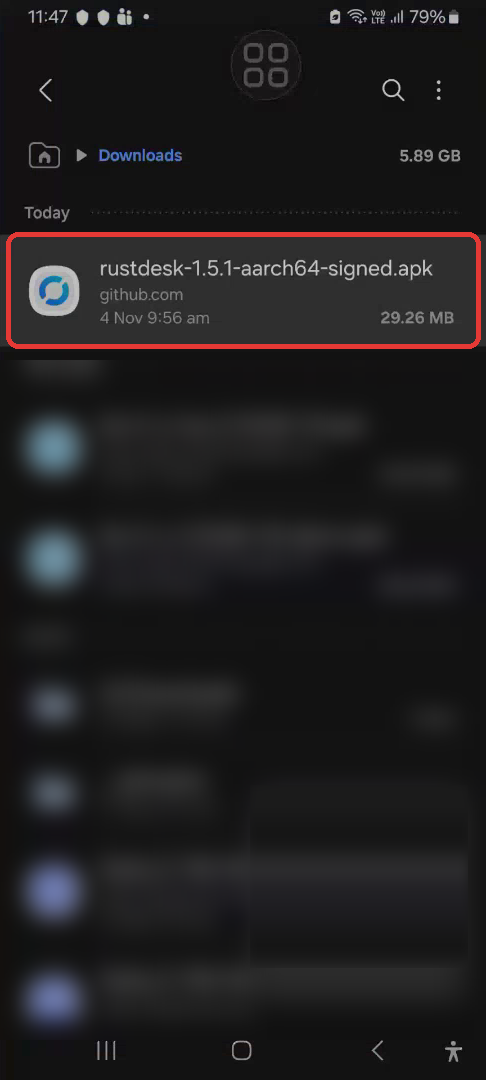
Step 1: Open RustDesk APK in Downloads Tap to enlarge
STEP 2

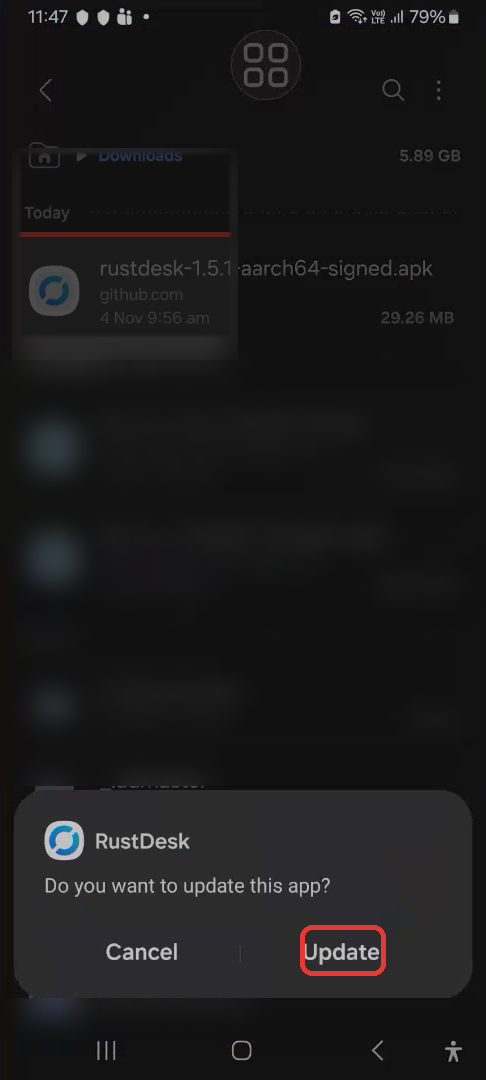
Tap “Install” (or “Update”)

Android's package installer asks to confirm. Tap Install (or Update if RustDesk was already on your phone) at the bottom right and wait until it finishes.

If Android asks whether to allow installing apps from this source, allow it for My Files (or your browser), then go back and tap Install.
Step 2: Confirm Install or Update Tap to enlarge
2

First Launch & Start the Service

Open RustDesk and start the screen-sharing service.

STEP 3

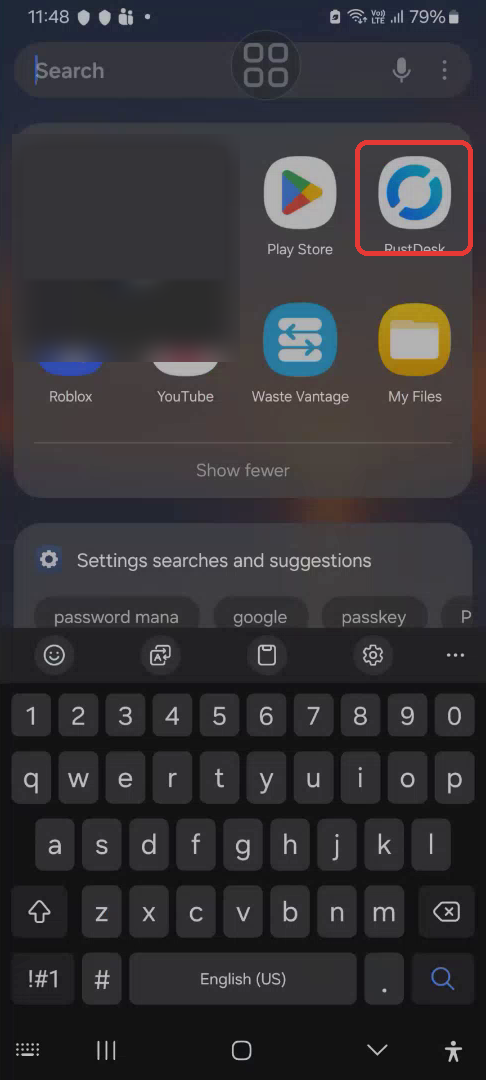
Open RustDesk

Open your apps (or search for RustDesk) and tap the blue circular RustDesk icon.

Step 3: Open RustDesk Tap to enlarge
STEP 4

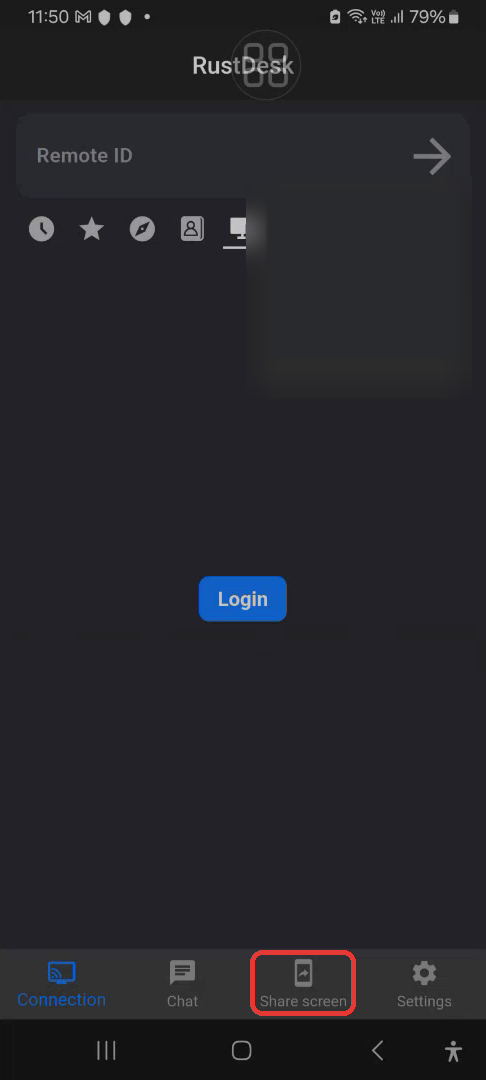
Tap the “Share screen” tab

RustDesk opens on the Connection tab. Tap Share screen in the bar at the bottom. You do not need to type anything into “Remote ID”.

Step 4: Tap Share screen tab Tap to enlarge
STEP 5

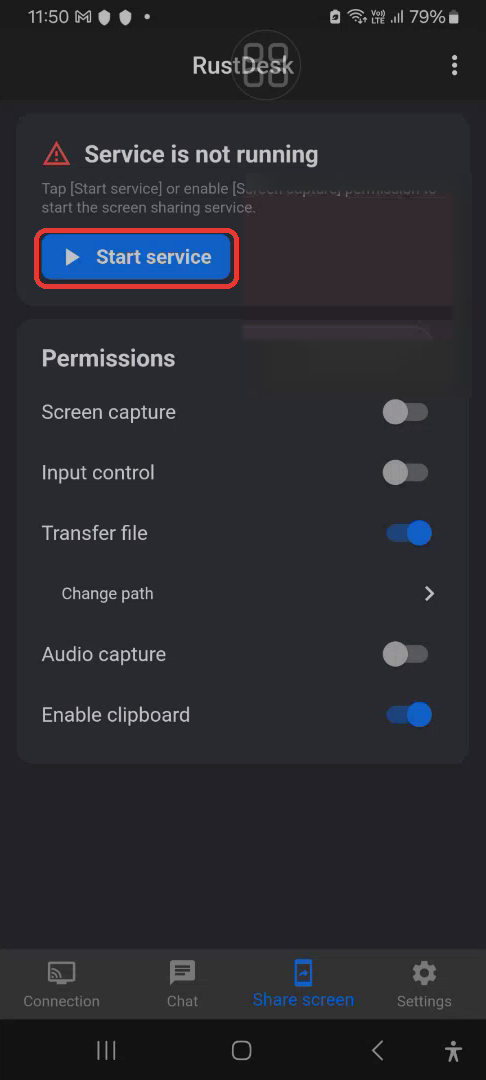
Tap “Start service”

The screen shows “Service is not running”. Tap the blue Start service button.

Step 5: Tap Start service Tap to enlarge
STEP 6

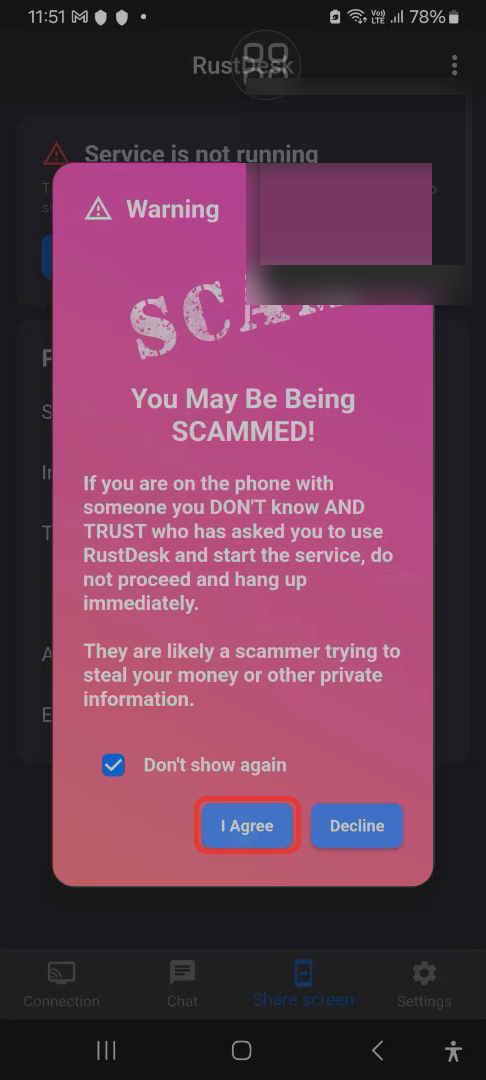
Read the scam warning, wait, then tap “I Agree”

RustDesk shows a “You May Be Being SCAMMED!” warning. Wait for the countdown on I Agree to finish, then tap I Agree. (“Don’t show again” is optional.)

Why this appears: Bad companies and scammers misuse remote-access tools, so RustDesk warns everyone. Only tap I Agree when you are on a call with Kyle, Andrew, or WasteVantage support.
Step 6: Scam warning and I Agree Tap to enlarge
3

Grant Permissions

Accept each Android permission prompt as shown.

STEP 7

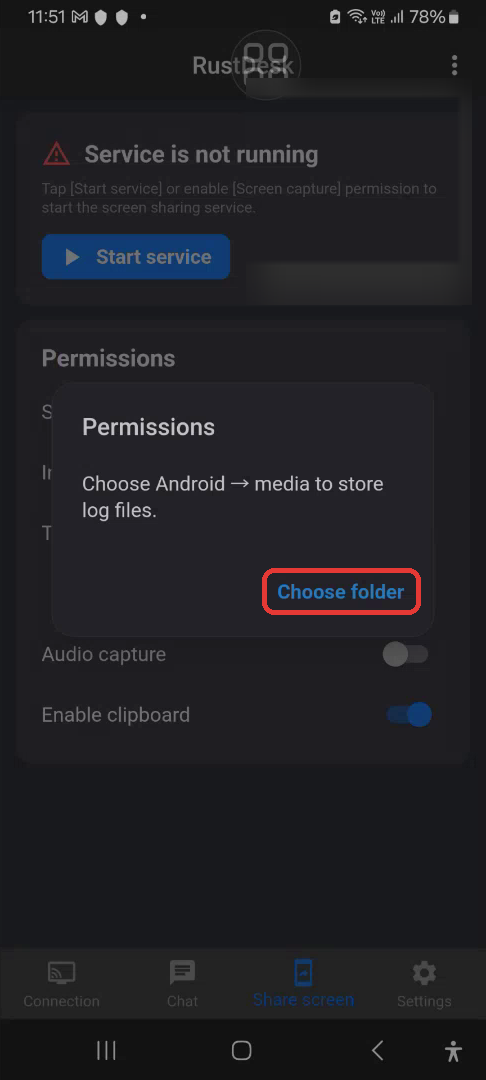
Tap “Choose folder”

A Permissions box says “Choose Android → media to store log files.” Tap Choose folder.

Step 7: Tap Choose folder Tap to enlarge
STEP 8

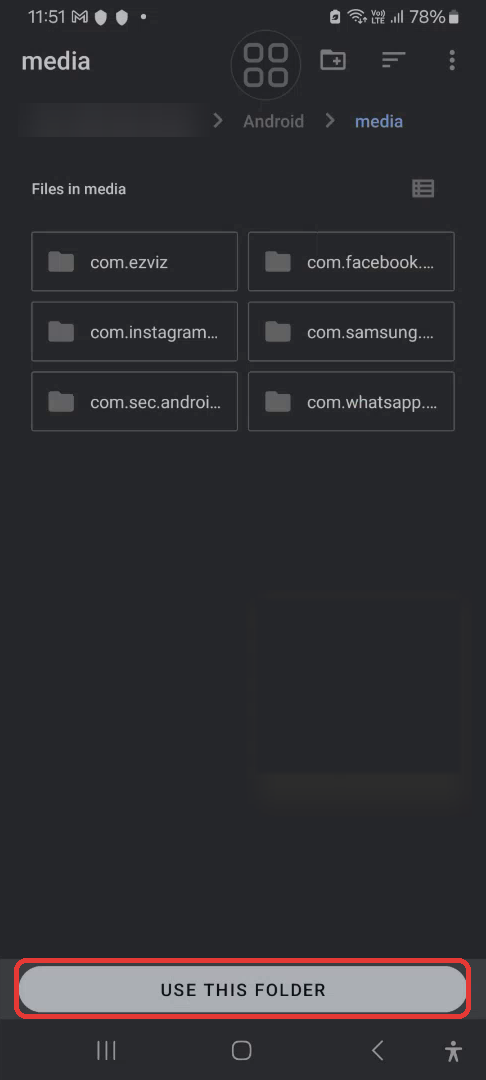
Tap “USE THIS FOLDER”

Android’s folder picker opens inside Android › media. Do not change folders — tap USE THIS FOLDER at the bottom.

Step 8: Tap USE THIS FOLDER Tap to enlarge
STEP 9

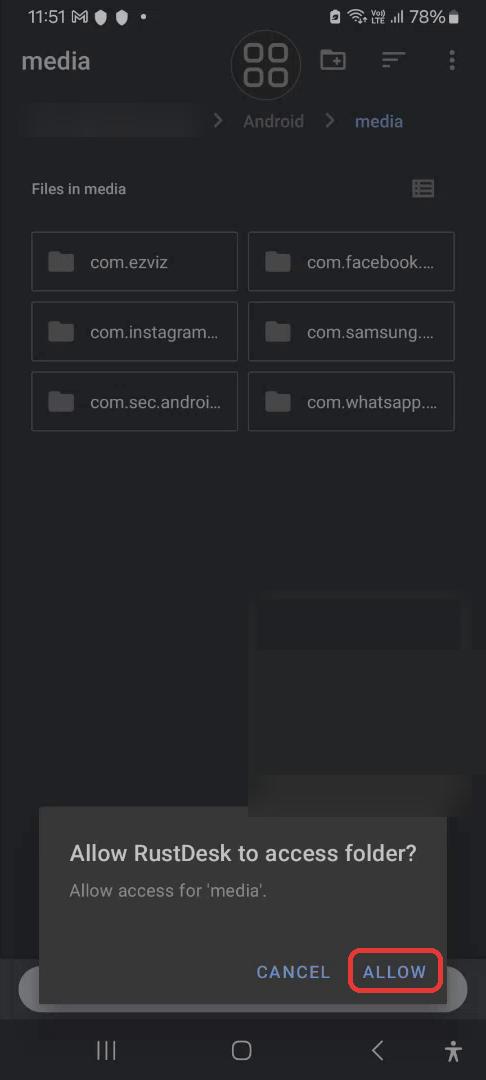
Tap “ALLOW”

Android asks “Allow RustDesk to access folder?” (Allow access for ‘media’). Tap ALLOW.

Step 9: Tap ALLOW Tap to enlarge
STEP 10

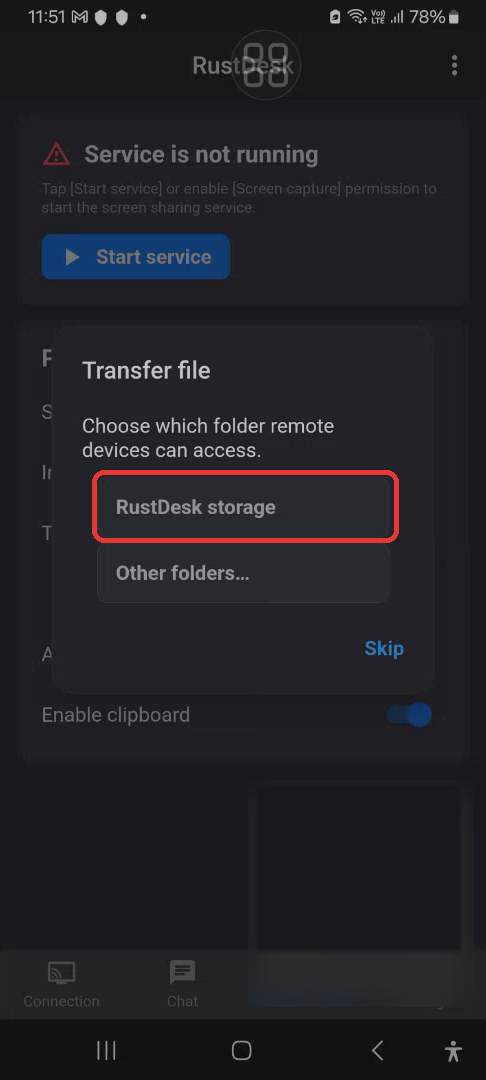
Choose “RustDesk storage”

The Transfer file box asks which folder remote devices can access. Tap RustDesk storage so file transfers stay inside RustDesk’s own folder.

Step 10: Choose RustDesk storage Tap to enlarge
STEP 11

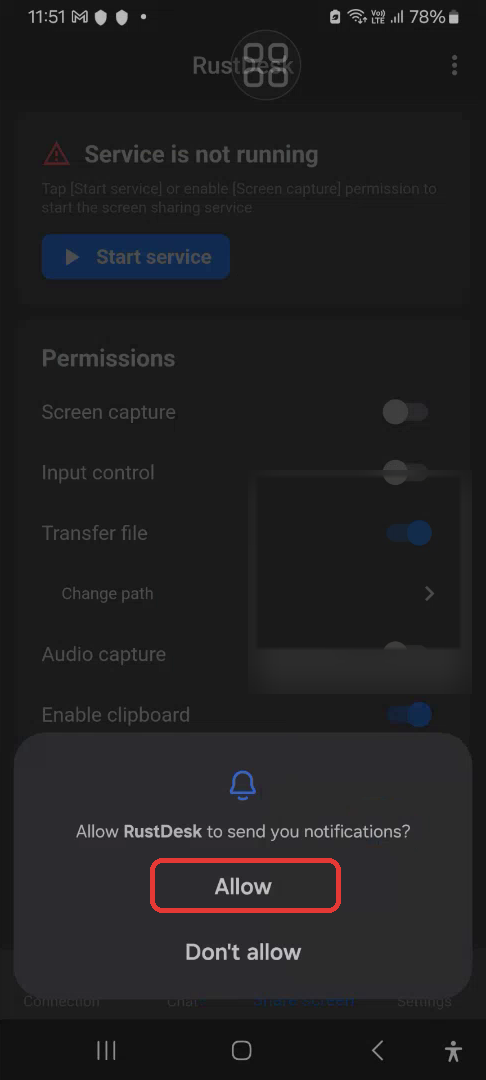
Allow notifications

Android asks “Allow RustDesk to send you notifications?” Tap Allow.

Step 11: Allow notifications Tap to enlarge
STEP 12

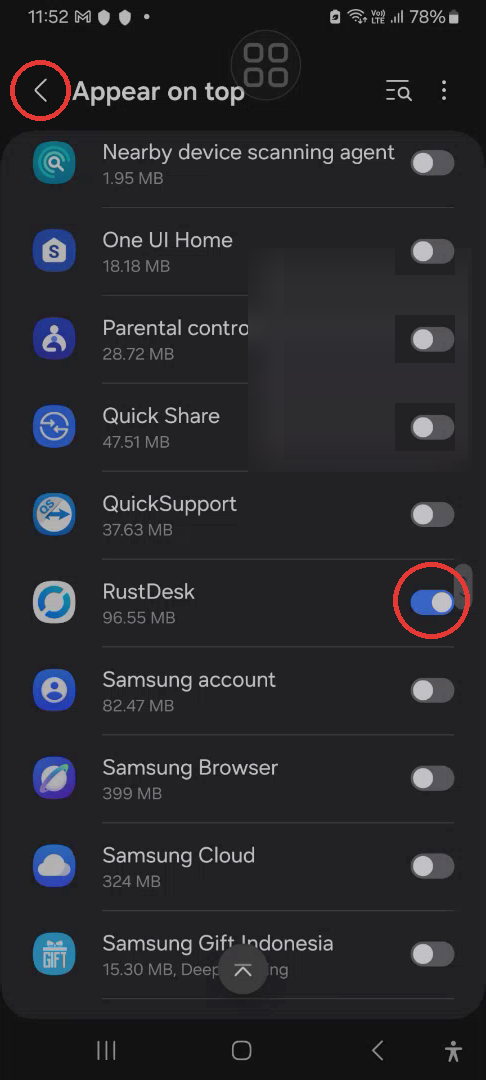
Turn on RustDesk under “Appear on top”, then go back

Scroll to RustDesk and turn its switch on (blue). Then tap the back arrow < next to “Appear on top” at the top left.

Step 12: Appear on top toggle Tap to enlarge
STEP 13

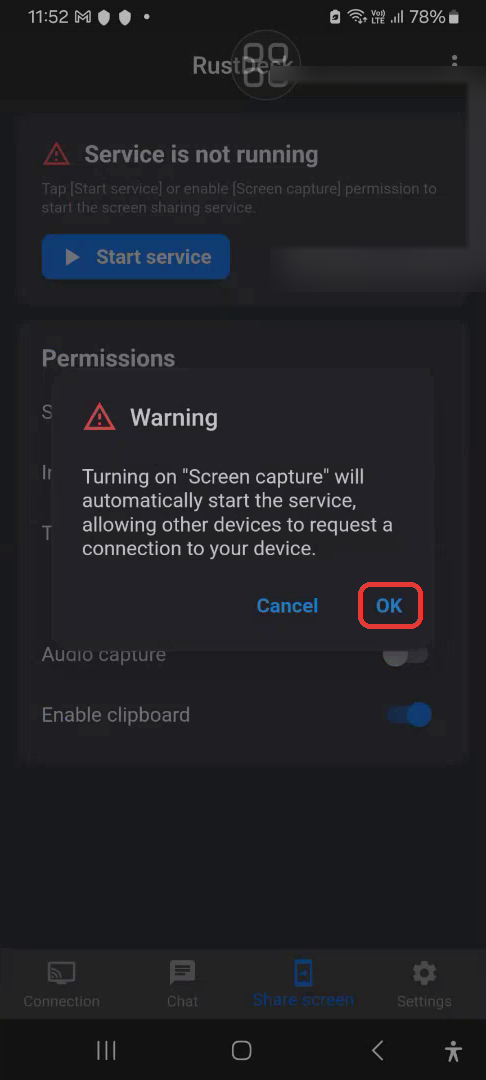
Turn on “Screen capture”, then tap “OK”

Back on the Share screen tab, turn on the Screen capture switch under Permissions. Tap OK on the warning prompt.

Step 13: Screen capture OK Tap to enlarge
STEP 14

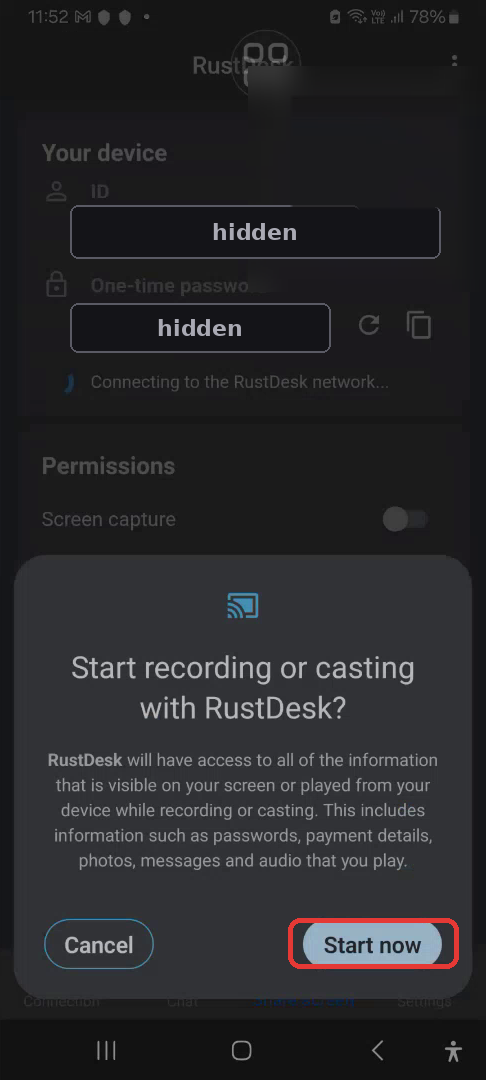
Tap “Start now”

Android asks “Start recording or casting with RustDesk?” Tap Start now so our support engineer can see your screen.

If you were sharing your screen in Microsoft Teams, Teams sharing may stop here — stay on the call and we will see your screen in RustDesk.
Step 14: Tap Start now Tap to enlarge
4

Share Your ID & One-Time Password

Read out the two codes to your support engineer so they can connect.

STEP 15

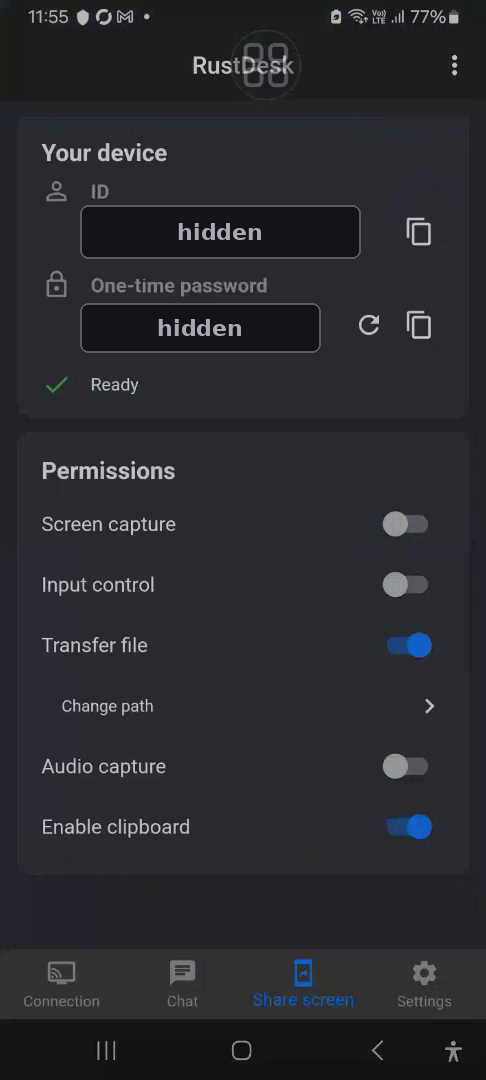
Read out your ID and One-time password

When status shows Ready, read out the 9–10 digit ID and the One-time password to our support person on the call.

In this screenshot the ID and password are hidden for privacy. The one-time password can refresh automatically, so always read the one currently on your screen.
Safety reminder: Never share your ID and password with anyone you don’t trust, and stop the service when your support call ends.
Step 15: Share ID and password Tap to enlarge
5

(Optional) Allow Remote Control

Only needed if the support engineer needs to tap and type on your phone for you.

STEP 16

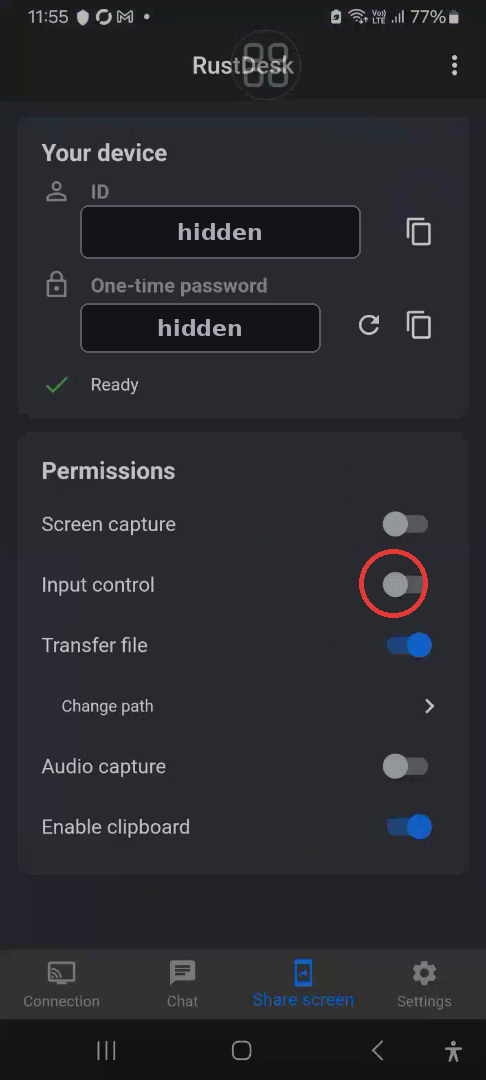
Turn on “Input control”

Under Permissions, turn on Input control. If Accessibility settings don’t open automatically, open Settings › Accessibility. (If “Start recording or casting?” appears again, tap Start now.)

Step 16: Turn on Input control Tap to enlarge
STEP 17

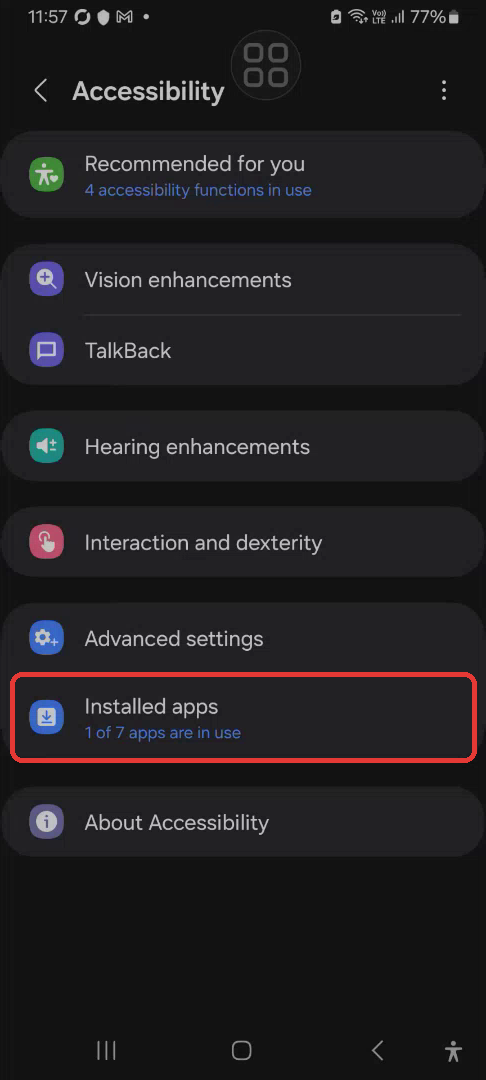
In Accessibility, tap “Installed apps”

On the Accessibility screen, tap Installed apps (on Samsung phones it sits near the bottom).

Step 17: Tap Installed apps Tap to enlarge
STEP 18

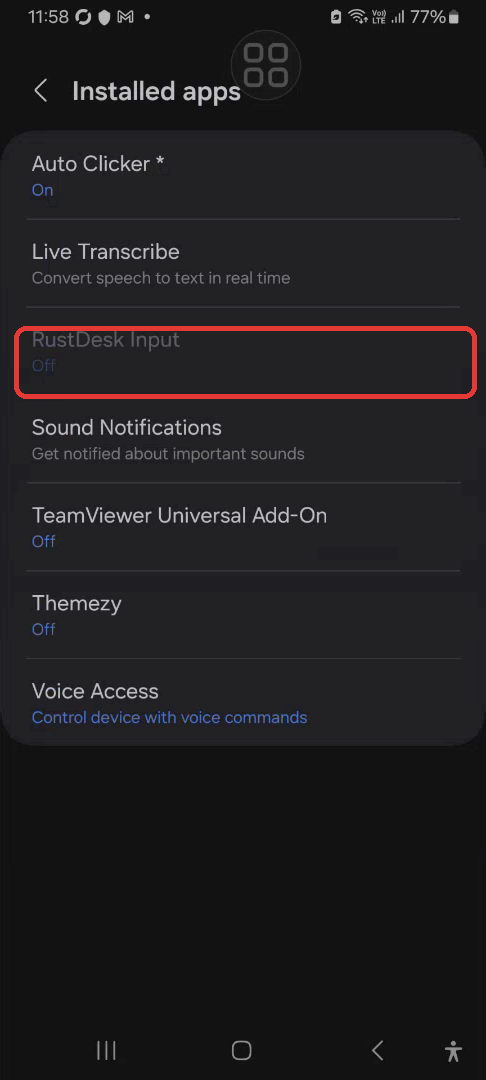
Tap “RustDesk Input”

In Installed apps, tap RustDesk Input (it shows Off and may look greyed out).

Step 18: Tap RustDesk Input Tap to enlarge
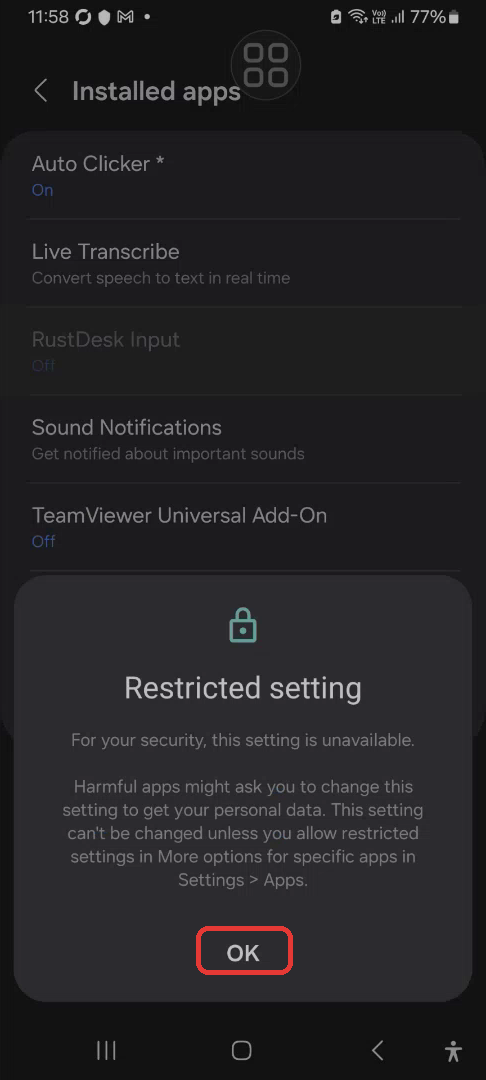
STEP 19

If you see “Restricted setting”, tap “OK”

On newer Android versions you may see “Restricted setting — For your security, this setting is unavailable.” Tap OK, then use the tip below to unlock it.

Step 19: Restricted setting Tap to enlarge

Tip: How to unlock “Restricted setting” (Android 13+)

  1. Open Settings › Apps › RustDesk.
  2. Tap the ⋮ (three-dot) menu at the top right and choose Allow restricted settings. Confirm with your PIN, pattern, or fingerprint if asked.
  3. Go back to Settings › Accessibility › Installed apps › RustDesk Input and turn it on.

Can’t find it? Tell the support person — they can still view your screen and guide you without remote control.

6

Connected

Your support engineer can now see your phone screen.

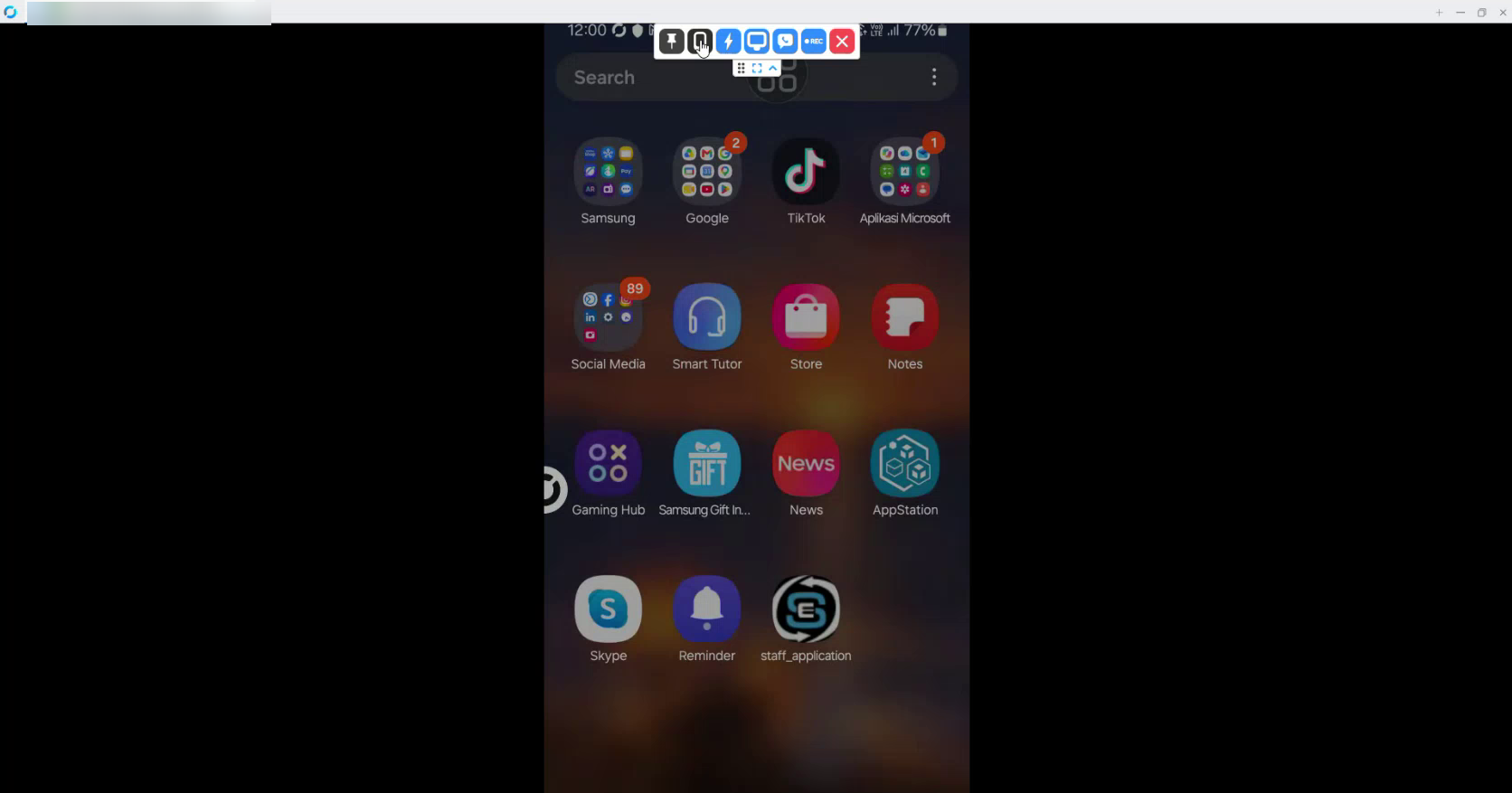
STEP 20

You’re connected

Once the support person enters your ID and password, your phone screen appears in their RustDesk window. Keep RustDesk running and stay on the call while they help. When finished, open RustDesk and stop the service.

Step 20: Connected view Tap to enlarge

Troubleshooting

Common questions during first-time Android setup.

Problem What to do
“I Agree” is greyed out Wait for the countdown on the button (e.g. “I Agree (9s)”) to finish, then tap it (Step 6).
No ID or password showing The service isn’t running yet — the screen says “Service is not running”. Tap Start service, or turn on Screen capture and tap OK, then Start now (Steps 5, 13–14).
Support asks you to restart sharing Turning the service off shows “Closing the service will automatically close all established connections.” Tap OK, then turn Screen capture back on, tap OK and Start now.
Password no longer works The one-time password can change automatically. Read out the one currently shown on the Share screen tab (Step 15).
Teams screen share stopped Starting RustDesk’s screen capture can end a Teams screen share from the phone. Stay on the voice call — the support person sees your screen through RustDesk.
“Restricted setting” for RustDesk Input Open Settings › Apps › RustDesk › ⋮ › Allow restricted settings, then return to Accessibility and turn RustDesk Input on (Step 19 tip).